
A router creates and manages your network, connects your devices to the internet, assigns IP addresses, and provides Wi-Fi. An access point connects to that existing network and adds or expands Wi-Fi coverage in areas the router cannot reach well.
Access points are also becoming more important as newer Wi-Fi standards spread. According to IDC, Wi-Fi 7 accounted for 53% of enterprise access point revenue in Q2 2026, showing how quickly newer access-point hardware is being adopted.
In this guide, I’ll compare access point vs router, explain when you need one or both, and which setup makes more sense for a home or an office.
- Access Point vs Router: What’s the Main Difference?
- What Can a Router and Access Point Actually Do?
- How Do Routers and Access Points Work Together?
- Router Mode vs Access Point Mode: Which Is Better?
- Which Gives Better Wi-Fi Performance?
- Which Setup Works Best for a Home or Office: Router or Access Point?
- What Are the Disadvantages of Using an Access Point?
- Which One Should You Choose: Access Point or Router
Access Point vs Router: What’s the Main Difference?
The main difference is that a router creates and manages the network, while an access point adds wireless access to an existing network. Here’s a table explaining the difference between an access point and a router.
| Feature | Router | Access Point |
|---|---|---|
| Main Job | Creates and manages the network | Adds Wi-Fi to an existing network |
| Connects to Modem/ONT | Yes | Usually no |
| Assigns IP Addresses | Usually yes | Usually no |
| Handles Routing and NAT | Yes | No |
| Provides Wi-Fi | Usually | Yes |
| Works as the Main Network Device | Yes | Usually no |
| Best For | Running a home or office network | Expanding Wi-Fi coverage |
| Typical Connection | Modem/ONT → Router | Router/Switch → Access Point |
Is a Router Just an Access Point?
No, a router and an access point can both provide Wi-Fi, but they do different jobs.
A typical home router is an all-in-one device. It usually handles routing, assigns local IP addresses, performs NAT, provides basic firewall functions, includes Ethernet ports, and also gives you Wi-Fi.
That built-in Wi-Fi function is essentially the access-point part of the router.
So a wireless router can include an access point, but a standalone access point is much more focused. Its main job is to let wireless devices connect to an existing network.
Cisco similarly describes a wireless router as a device that combines routing with wireless access-point functionality.
Why Use an Access Point Instead of a Router?
You normally use an access point when you already have a router but need better Wi-Fi coverage or more wireless capacity.
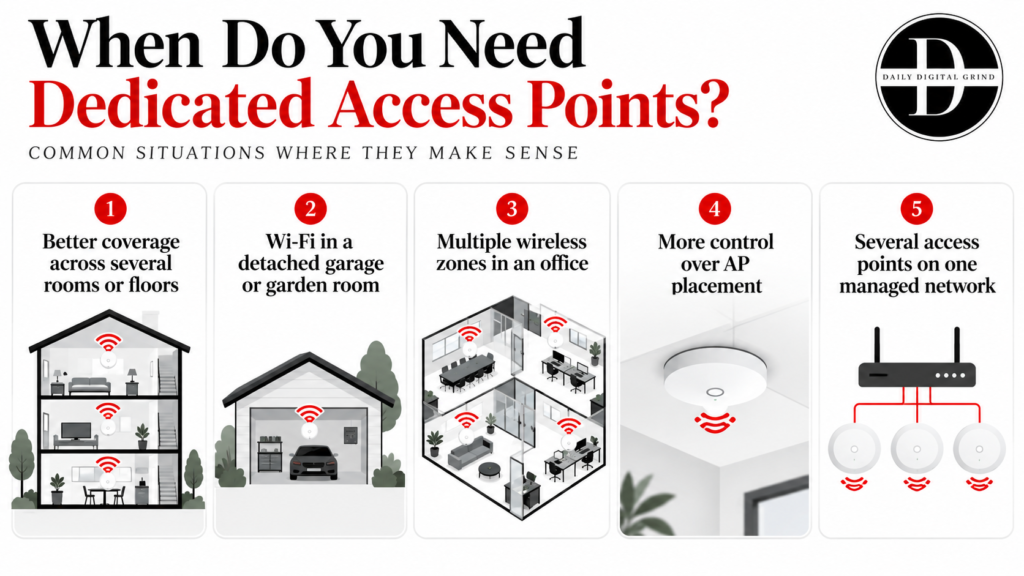
Imagine your router is downstairs, but the signal is weak in an upstairs bedroom or office. In this case, instead of adding a second router, you can connect an access point to the existing network and place it closer to that weak area.
Access points are also easier to scale. A business can use one router to manage the network and place several access points around the building to provide Wi-Fi where it is actually needed.
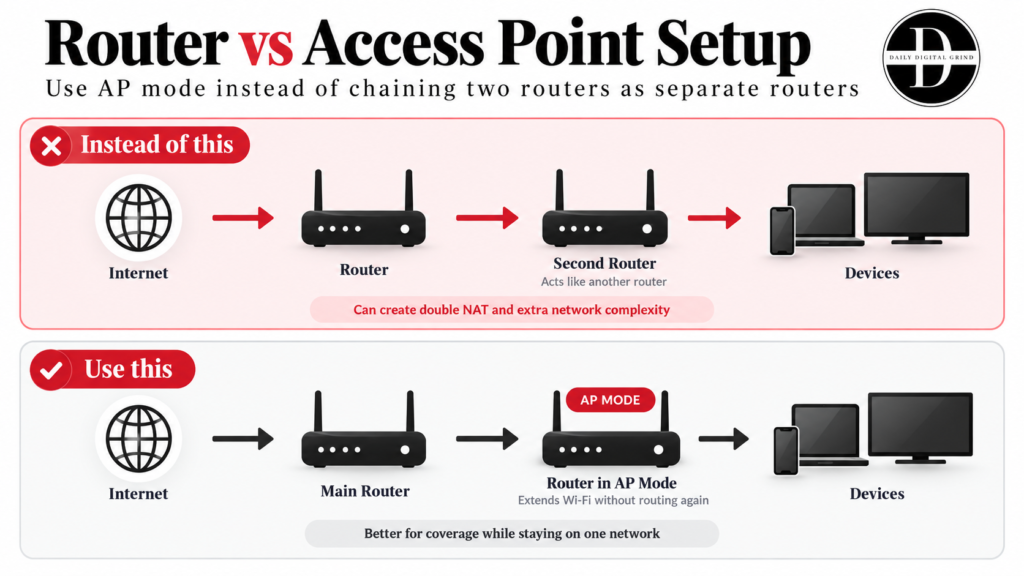
Using another router can work, but if it stays in full router mode, it may create issues such as double NAT, separate subnets, or more complicated device management.
What Can a Router and Access Point Actually Do?
The router is the device that makes the network function as a network. The access point is there to make that network available wirelessly in more places.
A router and an access point can both be part of the same Wi-Fi setup, but they handle very different jobs. That distinction sounds simple, but it matters a lot once you start adding a second device.
What Does a Router Do That an Access Point Doesn’t?
A router handles the network-management jobs an access point normally does not.
That includes:
- Routing traffic between your local network and the internet
- Assigning IP addresses through DHCP
- Performing NAT
- Acting as the default gateway for connected devices
- Providing basic firewall functions
- Managing traffic between different networks or subnets
In a typical home setup, the router is the device sitting between your modem or ONT and everything else.
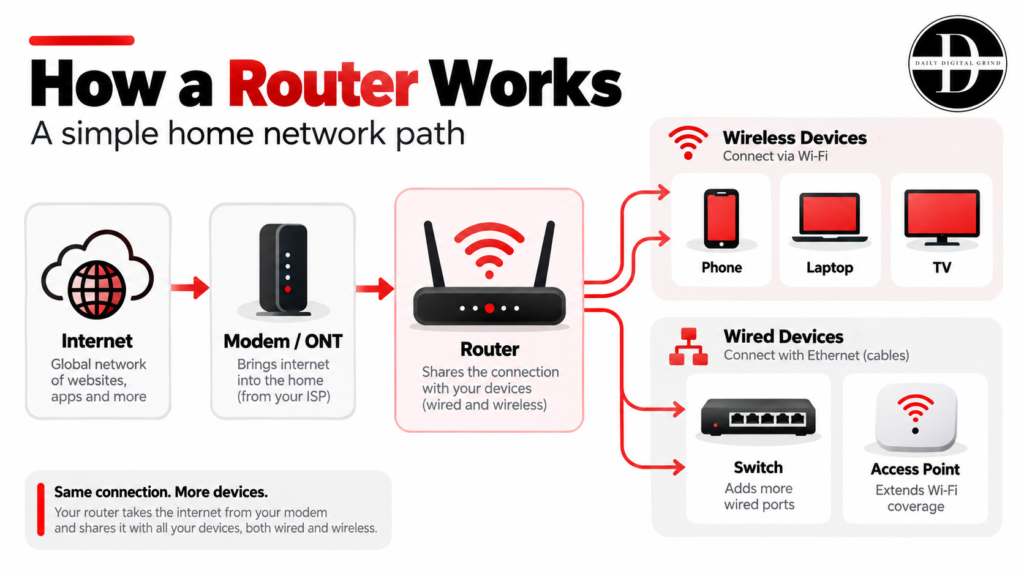
The key point is that the router decides where traffic needs to go.
An access point does not usually make those routing decisions. It mainly gives wireless devices a way to join a network that already exists. These routing, firewall, and traffic-management functions also make the router an important part of your overall network security.
If you connect a second router behind your main router and leave both in full router mode, you can end up with double NAT. So, if your main router is already handling routing, DHCP, and NAT, set the second device to Access Point mode.
What Does an Access Point Do That a Router Doesn’t?
A dedicated access point gives you much more freedom over where Wi-Fi is delivered. That is its real advantage.
Your router may be stuck beside the modem in a hallway, utility room, or one corner of the house. An access point can be connected by Ethernet and installed closer to the people and devices that actually need the signal.
For example:
Router downstairs → Ethernet cable → Access point upstairs
Now the upstairs devices do not have to struggle with a weak signal from the router downstairs. They connect to the nearby access point instead.
Can an Access Point Work Without a Router?
Yes, but only in limited cases.
An access point can create wireless connectivity between devices on a local network even if no router is present. For example, devices connected to the same AP could potentially communicate with each other on a small isolated LAN.
But for normal home or office use with internet access, you usually still need a router somewhere in the network.
How Do Routers and Access Points Work Together?
The router manages the network itself, while the access point extends that network wirelessly into areas where the router alone may not provide strong enough coverage. A common setup looks like this:
Internet → Modem/ONT → Router → Ethernet/Switch → Access Point → Wireless Devices
That setup is especially useful in larger homes and offices. It’s because the access point can be placed closer to the people and devices using Wi-Fi, while the router stays where the internet connection enters the building.
Do You Need Both a Router and an Access Point?
Not always.
A small home may only need one wireless router because most consumer routers already include built-in Wi-Fi.
You are more likely to need both when:
- The router cannot cover the entire home
- You have multiple floors
- Thick walls weaken the signal
- You need Wi-Fi in a garage, basement, or detached room
- An office needs coverage across several rooms
- You want several access points managed under one network
For instance, a two-story home might use one router downstairs and one access point upstairs. Both the router and the access point can serve wireless devices, but the router still handles the core networking functions.
Whichever setup you use, make sure you also protect your Wi-Fi from hackers, especially if you are adding more wireless access points around the property.
Can You Connect an Access Point Directly to a Router?
Yes, in fact, that is one of the most common ways to use an access point. The router continues handling DHCP, NAT, routing, and internet access. The access point simply carries that network connection into another wireless coverage area.
Some dedicated access points also support Power over Ethernet (PoE), which allows the same Ethernet cable to carry both network data and electrical power.
It is also one reason business Wi-Fi deployments often use dedicated APs rather than using several consumer routers.
Can You Use a Router as an Access Point?
Yes, many modern routers include a dedicated Access Point mode.
When you switch the router into AP mode, it stops performing many of the jobs normally handled by the main router. It focuses primarily on providing network connectivity and Wi-Fi.
TP-Link explains that features tied to router mode, such as NAT forwarding, bandwidth control, parental controls, and VPN functions, may become unavailable when the device is switched to Access Point mode.
Can You Change an Old Router Into an Access Point?
Often, yes. This can be a good way to reuse old hardware instead of immediately buying a dedicated access point.
Newer routers may have a simple setting such as:
Go to Advanced → Operation Mode → Access Point Mode
For older routers, you may need more manual setup. Follow these steps to manually turn an older router into an access point:
- Connect to the old router.
- Open its admin page in your browser and log in.
- Check for Access Point Mode under Advanced → Operation Mode.
- If AP mode is available, enable it.
- If not, go to LAN/DHCP Settings and turn DHCP Server off.
- Give the old router a fixed LAN IP, such as 192.168.1.2.
- Set the Wi-Fi name and password.
- Connect a LAN port on the main router to a LAN port on the old router with Ethernet.
- Restart both devices.
- Connect to the old router’s Wi-Fi and test the internet connection.
One useful detail here is that not every router behaves exactly the same in AP mode. On some models, switching modes can disable features such as VPN services, parental controls, NAT forwarding, or guest-network isolation.
Router Mode vs Access Point Mode: Which Is Better?
Neither mode is always better.
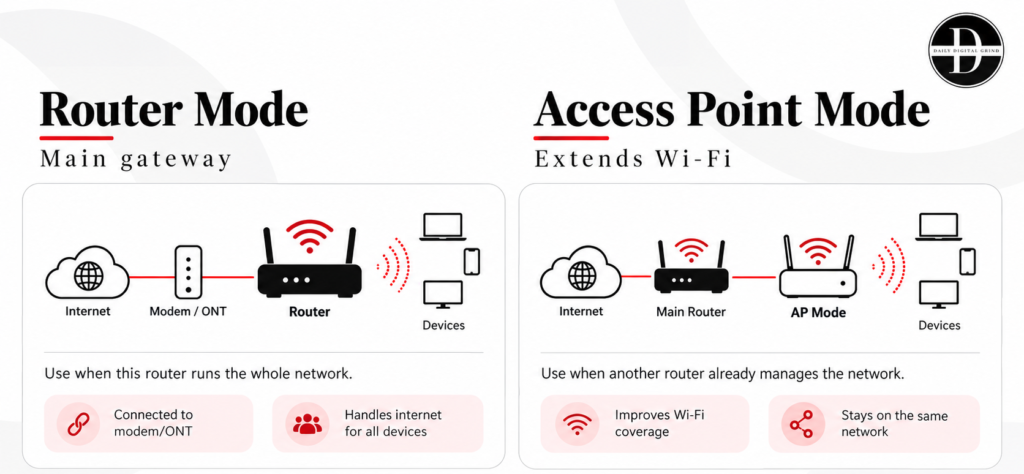
Router mode is best when the device needs to manage the network, while Access Point mode is better when another router is already doing that job. This mainly depends on the role you want the device to play.
Use Router mode when the device is the main gateway between your local network and the internet. This is the right mode when the router is connected directly to your modem or ONT and is responsible for the whole network.
Use Access Point mode when another router is already managing the network, and you only need better Wi-Fi coverage. In AP mode, the second device stops acting like a separate router and becomes part of the existing network.
Which Gives Better Wi-Fi Performance?
A router and an access point can both deliver fast Wi-Fi. However, performance depends more on placement, backhaul, Wi-Fi standard, interference, and device load than on the label printed on the hardware.
A well-placed access point connected by Ethernet can easily outperform a powerful router that is sitting two floors away behind several walls.
This is why larger homes and offices use multiple access points instead of trying to cover the whole building from one central router.
Does an Access Point Reduce Internet Speed?
No, an access point does not automatically reduce your internet speed.
If the AP is connected to the router through a fast Ethernet link and is using modern Wi-Fi hardware, it can deliver speeds very close to what the network connection allows.
A wired access point does not repeat the Wi-Fi signal. It gets its network connection over Ethernet and then creates a new wireless connection for nearby devices. That is one reason access points are often better for performance than wireless repeaters.
Is an Access Point Better than a Wi-Fi Extender?
For speed and reliability, a wired access point is usually better than a Wi-Fi extender. The table below shows the differences between an AP and a Wi-Fi extender.
| Feature | Access Point | Wi-Fi Extender |
|---|---|---|
| Backhaul | Usually Ethernet | Usually Wi-Fi |
| Performance | Mostly better | Depends heavily on signal |
| Reliability | Higher | Can vary |
| Latency | Usually lower | Can be higher |
| Installation | Requires cabling in most cases | Done through Wi-Fi signals |
| Best For | Permanent coverage improvement | Quick but temporary coverage solution |
In my own home, I use a Wi-Fi extender rather than a wired access point because I don’t have Ethernet cabling in the areas where I need better coverage. It’s not the ideal setup for maximum performance, but it solves the coverage problem without running new cables.
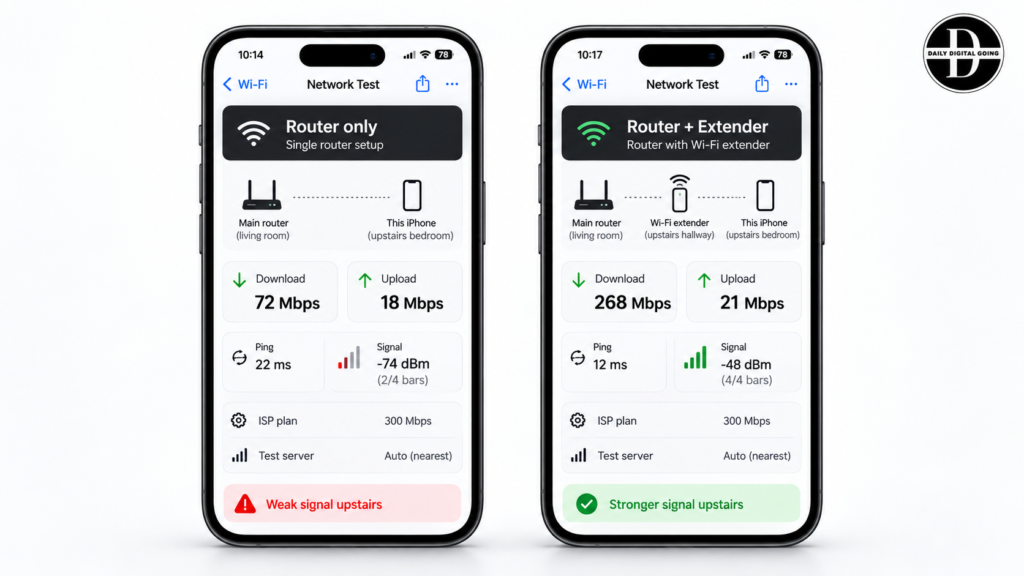
If you have the option to install a cable, a wired access point is usually the stronger long-term solution.
Can Multiple Access Points Improve Wi-Fi Coverage?
Yes. This is one of the main reasons access points are used in larger networks.
Instead of relying on one router to cover the entire building, you can place several APs in different areas. Each access point covers a smaller area, so devices can connect to a closer signal.
If 50 devices are all trying to connect to one AP, that single radio has to handle all of them. Splitting those devices across several properly placed access points can reduce congestion and improve the overall experience.
Just keep the placement in mind.
Adding more access points does not automatically make Wi-Fi better. If APs are placed too close together or use overlapping channels badly, they can interfere with each other.
Which Setup Works Best for a Home or Office: Router or Access Point?
The best setup depends on the size of the space, how many devices you have, and how far the Wi-Fi signal needs to travel.
For most small homes, a single router is enough. As the space gets larger or the network has to cover multiple rooms, floors, or work areas, adding one or more access points starts to make much more sense.
Use the table below to see which setup is best for you and why.
| Situation | Best Setup | Why |
|---|---|---|
| Small Apartment | Router | One router is usually enough to manage the network and cover the space |
| Small Home | Router | A centrally placed router can often provide good coverage |
| Medium Home | Router | Usually enough if placement is good and walls are not too dense |
| Large or Multi-story Home | Router + Access Point | The AP helps cover rooms or floors the router struggles to reach |
| Home with Thick Walls or Dead Zones | Router + Access Point | A wired AP can bring Wi-Fi closer to the weak area |
| Small Office | Router | Fine for a limited number of users and a compact workspace |
| Medium Office | Router + Multiple Access Points | Better coverage and more wireless capacity |
| Large Office or Multiple Floors | Router + Multiple Access Points | Makes it easier to spread users and maintain consistent coverage |
| Wired Office that Needs Wi-Fi | Router + Access Point | The AP adds wireless access to the existing wired network |
For instance, my office is a three-story building, so I use wired access points connected back to the network through Ethernet. That gives me a much more stable connection across all three floors than trying to rely on one central router.
If your business operates from multiple locations, you can operate separate office networks connected securely through a site-to-site VPN.
What Are the Disadvantages of Using an Access Point?
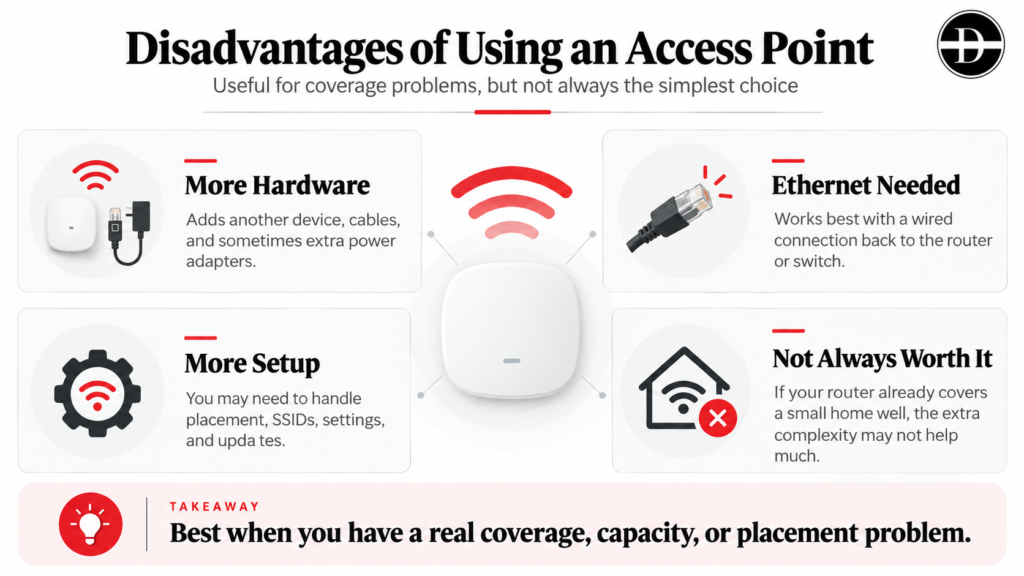
An access point can improve Wi-Fi coverage, but it also adds more hardware, more setup, and more things to manage.
For a small home with good router coverage, that extra complexity may not be worth it. Access points make the most sense when you have a clear coverage problem, a larger space, or an existing wired network you want to extend.
Adding more network hardware also means more devices and configurations to keep secure. So, the setup should still be part of your broader cybersecurity practices.
Does an Access Point Require Ethernet?
Usually, yes.
Most dedicated access points work best with a wired Ethernet connection back to the router or network switch. That wired connection gives the AP a stable backhaul and lets it deliver Wi-Fi without depending on another wireless hop.
If your home or office does not already have Ethernet where you need the AP, running cable can be inconvenient or expensive.
Are Access Points Harder to Set Up Than Routers?
They can be, especially for someone who just wants working Wi-Fi as quickly as possible.
A normal consumer router is usually designed to be an all-in-one device. You connect it, follow the setup wizard, create a Wi-Fi name and password, and you are done.
With a dedicated access point, you need to think about the Ethernet, power adapters, SSIDs, IP settings, and firmware updates. Business-grade access points can add even more options, such as VLANs, guest networks, and centralized management.
When Is an Access Point Not Worth Buying?
If your existing router already gives you strong, reliable coverage everywhere you need it.
For example, if you live in a small apartment and your router already provides good speeds in every room, adding an AP may give you very little practical benefit. Simply move the router to a better location, or upgrade it.
Do not add an access point just because it sounds more advanced. Add one when you have a real coverage, capacity, or placement problem that your router cannot solve on its own.
Which One Should You Choose: Access Point or Router
For most people, the choice is simple. You need a router first, and you add an access point when the router alone cannot give you the Wi-Fi coverage or capacity you need. For bigger offices, I’d recommend using an AP.
Choose a router if:
- You are setting up the main network
- You need to connect your local network to the internet
- You need DHCP, NAT, firewall, or port-forwarding features
- You want one device to manage both wired and wireless connections
- You live in a smaller home where one device can provide reliable coverage
Choose an access point if:
- You already have a router
- You have weak Wi-Fi in certain rooms or floors
- You want better coverage without creating a second routed network
- You already have Ethernet available in the area you want to cover
- You are building a larger home or office network with several wireless zones
- You need to add more wireless capacity without replacing the main router