
ClickUp is an all-in-one project management platform designed to replace multiple tools with a single, flexible workspace. Teams use it to plan projects, track tasks, collaborate in real time, manage goals, and automate work all from one dashboard. From startups and agencies to enterprise teams, ClickUp has positioned itself as a serious alternative to tools like Asana, Trello, Monday.com, and Jira.
In this guide, we’ll walk through how ClickUp project management actually works, what makes it different, and how teams can use it effectively without overcomplicating their workflows.
- What Is ClickUp Project Management?
- Why Teams Choose ClickUp
- Understanding ClickUp’s Hierarchy
- ClickUp Views: See Work Your Way
- Task Management in ClickUp
- Collaboration and Documentation
- Automation and Efficiency
- Goals, Dashboards, and Reporting
- ClickUp for Different Teams
- Best Practices for Using ClickUp Successfully
- Conclusion
- FAQs
What Is ClickUp Project Management?
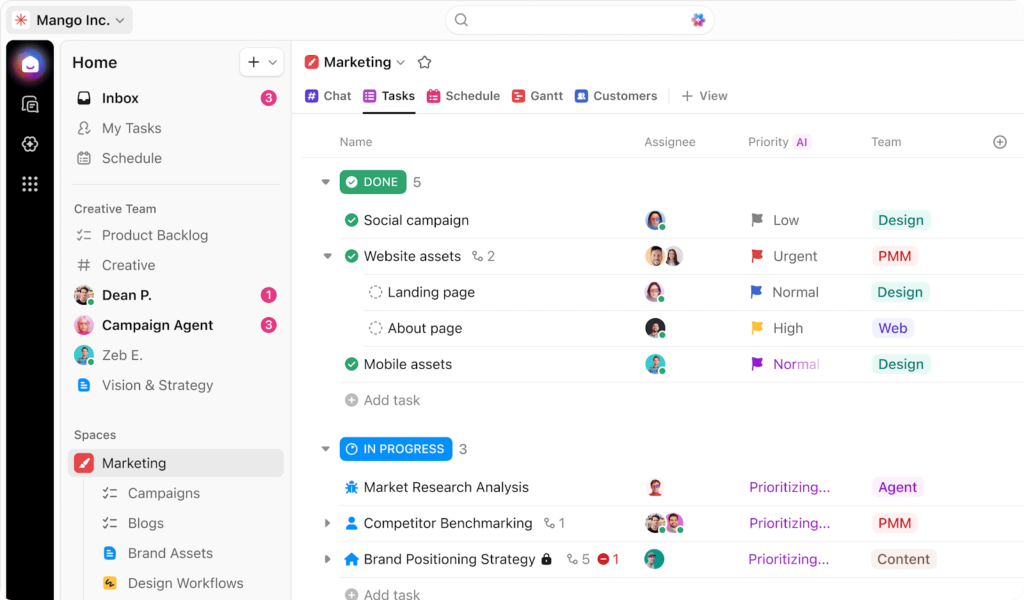
ClickUp project management is about centralizing work tasks, documents, timelines, communication, and reporting inside one system.
Instead of switching between tools for:
- Tasks
- Docs
- Chat
- Goals
- Dashboards
- Time tracking
ClickUp brings everything together in a single workspace.
At its core, ClickUp allows teams to:
- Break projects into tasks and subtasks.
- Assign owners, due dates, priorities, and statuses.
- Visualize work in multiple views.
- Collaborate with comments, mentions, and docs.
- Track progress with goals and dashboards.
This flexibility is what makes ClickUp powerful but it’s also why teams need a clear setup strategy.
Why Teams Choose ClickUp
ClickUp’s biggest selling point is customization without limits. Unlike ridgid tools that force every team into the same workflow, ClickUp adapts to how your team already works.
Teams use ClickUp to:
- Run marketing campaigns
- Manage product roadmaps
- Track software sprints
- Handle client projects
- Organize internal operations
According to G2 and Capterra reviews, users consistently highlight ClickUp’s feature depth, pricing value, and ability to scale with growing teams.
Understanding ClickUp’s Hierarchy
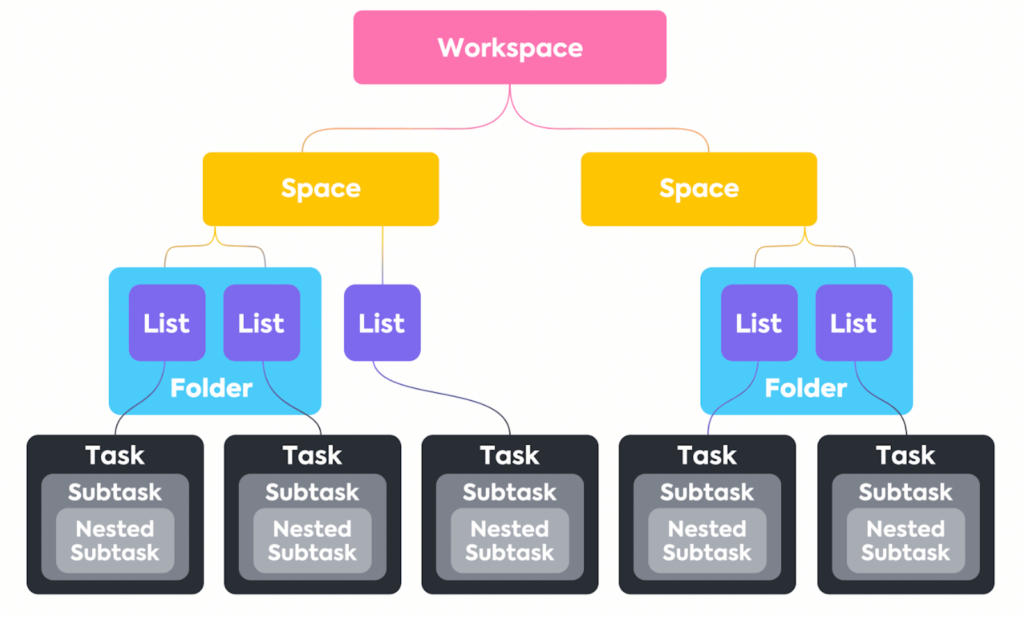
To use ClickUp effectively, you need to understand its structure. ClickUp organizes work in a clear hierarchy:
- Workspace Your entire organization
- Spaces Departments or major functions (Marketing, Product, Ops)
- Folders Groups of related projects
- Lists Individual projects or workflows
- Tasks Action items
- Subtasks Smaller steps within tasks
This hierarchy allows teams to stay organized without losing visibility.
The key is not to overbuild from day one. Start with fewer Spaces and Lists, then expand as your processes mature.
ClickUp Views: See Work Your Way
One of ClickUp’s strongest features is its variety of views. The same data can be visualized in different ways depending on how your team thinks. Popular ClickUp views include:
List View
Best for detailed task management, filters, and bulk updates.
Board View
A Kanban-style layout ideal for agile workflows and visual progress tracking.
Gantt View
Perfect for project timelines, dependencies, and deadline planning.
Calendar View
Great for content schedules, launch planning, and time-based work.
Timeline View
A high-level look at how projects overlap across time.
Teams can switch between views instantly without duplicating work.
Task Management in ClickUp
ClickUp’s task system goes far beyond basic to-do lists. Each task can include:
- Assignees and watchers
- Due dates and start dates
- Priority levels
- Custom fields (budget, channel, client, sprint)
- Dependencies and relationships
- Comments and threaded discussions
You can also use:
- Recurring tasks for ongoing work
- Task templates for repeatable processes
- Statuses customized to match your workflow
This makes ClickUp suitable for both simple projects and complex, multi-stage initiatives.
Collaboration and Documentation
ClickUp replaces standalone documentation tools by integrating ClickUp Docs directly into projects. With Docs, teams can:
- Create project briefs and SOPs.
- Embed tasks directly inside documents.
- Comment, assign, and collaborate in real time.
- Link Docs to tasks, folders, or spaces.
This reduces context switching and keeps knowledge tied to actual work. Mentions, comments, and notifications ensure discussions stay connected to tasks instead of getting lost in chat tools.
Automation and Efficiency
ClickUp automation helps teams eliminate repetitive work. You can automate actions like:
- Changing task status when conditions are met.
- Assigning tasks automatically.
- Moving tasks between lists.
- Triggering notifications.
For example: “When a task moves to ‘Ready for Review,’ assign it to the QA lead and set a due date.”
Automations are available even on lower-tier plans, which is a major advantage over many competitors.
Goals, Dashboards, and Reporting
ClickUp isn’t just about managing tasks, it’s about tracking outcomes.
Goals
Teams can set measurable goals tied to:
- Task completion
- Number values
- Financial targets
Progress updates automatically as work is completed.
Dashboards
Dashboards provide real-time visibility with widgets for:
- Task progress
- Workload by assignee
- Time tracking
- Sprint performance
This makes ClickUp especially valuable for managers and leadership teams who need clarity without micromanaging.
ClickUp for Different Teams
ClickUp’s flexibility allows it to support multiple departments in one workspace.
- Marketing teams use it for content marketing, campaigns, and approvals etc.
- Product teams manage roadmaps, backlogs, and sprints.
- Agencies track client work, deadlines, and deliverables.
- Operations teams document processes and manage workflows.
- Remote teams centralize communication and accountability.
Because everything lives in one platform, cross-team alignment becomes much easier.
Best Practices for Using ClickUp Successfully
ClickUp is powerful but only if implemented thoughtfully.
Best practices include:
- Start with simple workflows.
- Limit custom statuses early on.
- Use templates instead of building from scratch.
- Train teams on views and filters.
- Review dashboards weekly.
Teams that try to use every feature on day one often feel overwhelmed. ClickUp works best when you crawl, then walk, then run.
Conclusion
ClickUp project management isn’t about adding another tool, it’s about reducing tool sprawl. When used correctly, ClickUp becomes the central nervous system for your team’s work. It connects planning, execution, collaboration, and reporting in one place, helping teams move faster with less friction.
That said, ClickUp rewards intentional setup. Teams that take time to define workflows, start simple, and scale gradually see the biggest gains. If your current project management setup feels fragmented or limiting, ClickUp is worth serious consideration.
For smarter workflows and scalable productivity, explore expert automation and SaaS insights at Daily Digital Grind.
FAQs
Is ClickUp good for project management?
Yes, ClickUp is widely considered one of the most comprehensive project management tools available. It combines task management, collaboration, documentation, automation, and reporting into a single platform suitable for teams of all sizes.
What makes ClickUp different from other project management tools?
ClickUp’s biggest differentiator is flexibility. It allows teams to customize workflows, views, fields, and automation without forcing a one-size-fits-all structure. It also replaces multiple tools by combining tasks, docs, goals, and dashboards.
Is ClickUp suitable for small teams and startups?
Absolutely, ClickUp offers a generous free plan and affordable paid tiers, making it accessible for small teams. Startups benefit from its ability to scale as processes become more complex.