
ClickUp is a project management and productivity platform that’s part task manager, part collaboration hub. Millions of teams, freelancers, and enterprises use it to manage projects, track tasks, collaborate across departments, and even automate repetitive workflows. It all happens inside ClickUp’s flexible ecosystem of Spaces, Folders, Lists, and tasks.
All this makes it a powerful platform for productivity and workflow management. As long as you know how to use its features effectively.
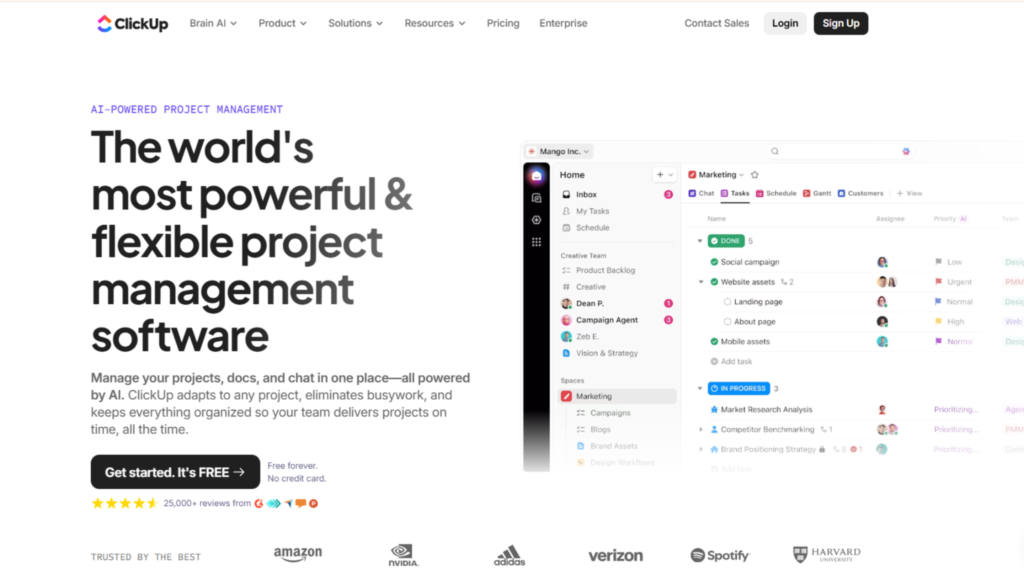
You can’t treat ClickUp like just another to-do app. Teams hate cluttered dashboards and poorly organized tasks. They reward workflows that are well-structured, transparent, and automated, so just creating tasks without context won’t cut it. If you’re organized and use ClickUp smartly, the reward is a huge boost in productivity, team efficiency, and project clarity you won’t get anywhere else.
In this guide, we’ll walk you through what ClickUp is, why it matters, and how to use it the right way including both organic workflow strategies and advanced automations.
Key Takeaways
- ClickUp is a versatile project management and productivity platform.
- Winning with ClickUp means structuring Spaces, Folders, Lists, and tasks correctly.
- Use a Crawl-Walk-Run approach in your ClickUp adoption: Start simple, organize workflows, then scale into automation, integrations, and dashboards.
- Collaboration is key. Add value to your team by making workflows clear and actionable.
- ClickUp features influence team productivity, project delivery times, and even company-wide operations.
Why Is ClickUp Important as a Productivity Platform?
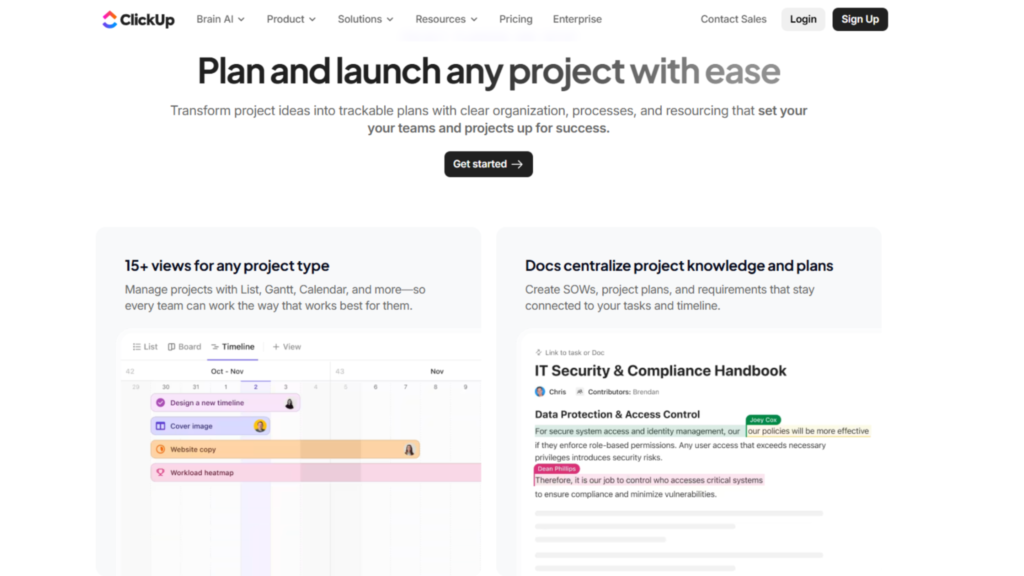
ClickUp is massive and growing fast. Recent estimates put it at over millions of active users, including teams from startups to Fortune 500 companies. It’s essentially a giant ecosystem of customizable workflows where teams can plan projects, assign tasks, track progress, and collaborate in real time.
What makes ClickUp especially relevant today is how often its features replace multiple apps. You can manage docs, spreadsheets, reminders, goals, calendars, and chat all in one place. Check out a comparison of teams using ClickUp vs multiple apps. Teams using ClickUp often report higher efficiency and faster project completion. This shows two things; ClickUp consolidates workflows effectively, and teams benefit from a centralized workspace.
ClickUp also plays a growing role in AI productivity tools. Its AI-powered features help draft tasks, summarize updates, and generate reports, reducing manual workload and improving decision-making. When you implement ClickUp, you’re not just managing tasks, you’re influencing team culture, efficiency, and overall project success.
Fundamentals to Know About ClickUp
The most fundamental thing to know about ClickUp is that it isn’t just one app, it’s a web of customizable features. Spaces, Folders, Lists, Tasks, Views, Automations, Docs, and Dashboards all interact differently.
“ClickUp is a different kind of productivity platform.” It’s all about building workflows that actually work for your team, not just throwing tasks into a list.” That’s what makes ClickUp powerful. It’s also what makes it easy to misuse. Start with the basics by reading ClickUp’s onboarding guides and template library. Once you’ve done that, explore:
- Setting up Spaces, Folders, and Lists correctly.
- Using statuses and custom fields efficiently.
- Assigning priorities and dependencies.
- Understanding views. (List, Board, Calendar, Gantt, Table)
Next, zoom in on each team’s needs.
Some teams thrive with agile boards, while others prefer a linear list view. Some need automations for recurring tasks; others just want task reminders. ClickUp is flexible; you just need to match features with workflows.
Organic ClickUp Strategies
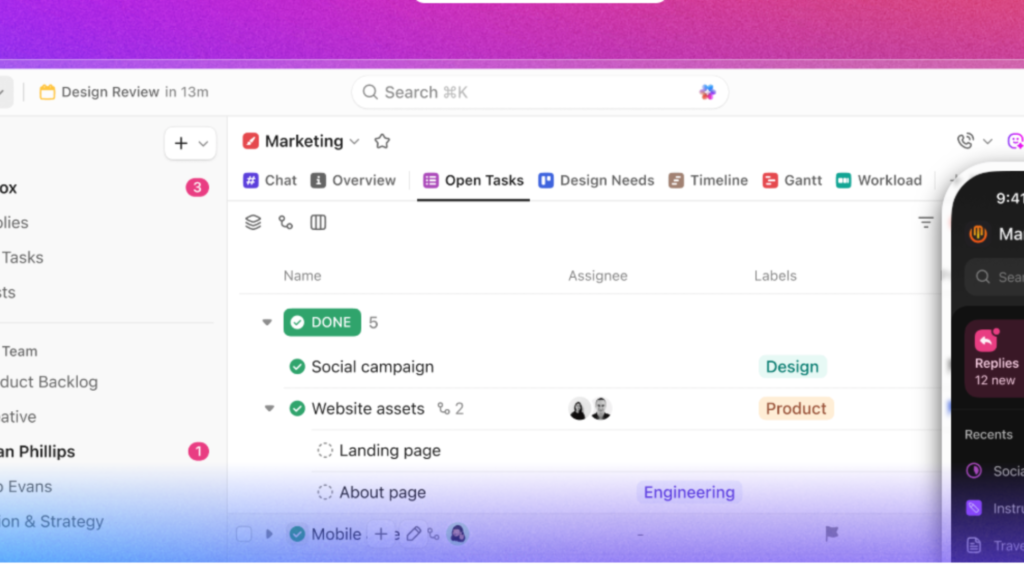
Organic adoption is the name of the game with ClickUp. Features are powerful, but teams only benefit if workflows are thoughtfully implemented.
Use a Branded Workspace
If you’re using ClickUp for your team or company, set up a workspace that clearly represents your department or team. Include a professional avatar and a description of the workspace purpose.
This screenshot shows a well-organized ClickUp workspace with clearly labeled Spaces like Marketing, Product, and Design, along with dashboards for each department.
From there, resist the urge to overload tasks. Instead, focus on clear assignments, priorities, and dependencies. That way, your workspace doesn’t look chaotic.
An honest, clear structure boosts credibility with your team and reduces confusion.
Provide Value to Teams
ClickUp rewards teams that use it intelligently. If your first instinct is “just create tasks,” you’re missing out. Focus on workflows that add value, like:
- Detailed task descriptions
- Checklists for complex tasks
- Clear deadlines and priorities
- Templates for recurring projects
- Dashboards for progress tracking
Over time, this builds team trust, accountability, and efficiency. When you introduce new processes or automations, it feels like a natural upgrade, not an interruption.
Use ClickUp Docs and Collaboration Tools
Docs are powerful for team knowledge sharing. Summarize processes, document project guidelines, or create internal knowledge bases directly in ClickUp.
Use comments and mentions to collaborate on tasks instead of separate chat apps. This keeps communication in context and searchable.
Ask Me Anything (AMA) for Productivity Teams
AMAs can work even inside ClickUp. For example, host a team AMA on project workflow:
“Ask me anything about how we manage product launches using ClickUp.”
“I run operations for a 50-person startup. Ask me how we track goals and KPIs in ClickUp.”
Focus on sharing real tips, lessons, and experiences. Avoid turning it into a pitch about ClickUp features; it’s about team adoption and workflow success.
Start Templates and Custom Automations
Starting templates and automations is more of a “phase two or three” strategy. If you don’t already have structured processes, custom automations will overwhelm your team.
Once there’s clear workflow interest, recurring tasks, dependencies, or multiple teams using ClickUp you can launch templates or automations as a hub.
Set clear instructions, pin guides in Docs, and seed tasks with step-by-step instructions. Commit to monitoring and adjusting.
Promote templates internally for value (“This will save you 3 hours per week”), not just to show off new features.
ClickUp Paid Features and Add-Ons
Organic adoption is the foundation of ClickUp success, but paid features like advanced dashboards, goals tracking, and unlimited automations help scale team efficiency.
The big advantage is customization and reporting:
- Use dashboards to visualize progress across multiple teams.
- Track key metrics and KPIs.
- Automate recurring reminders and dependencies.
- Use AI tools for task summarization and priority recommendations.
ClickUp Policies and Best Practices
ClickUp works best when teams follow some rules:
- Keep task names clear and concise.
- Assign owners and due dates consistently.
- Avoid cluttering lists with completed or irrelevant tasks.
- Review dashboards regularly to prevent bottlenecks.
- Use automations wisely; don’t over-automate.
Accuracy and transparency matter: dashboards should reflect real progress, and task ownership should be clear.
Types of ClickUp Views and Features
ClickUp’s features are designed to accommodate different workflows:
- List View: Classic task tracking
- Board View: Kanban-style visualization
- Calendar View: Scheduling and deadlines
- Gantt View: Dependencies and timeline management
- Table View: Spreadsheet-style overview
- Dashboard: Metrics, charts, and progress tracking
- Automations: Task triggers, status changes, reminders, and notifications
Examples of Effective ClickUp Workflows
- Marketing Team: Uses List and Board views to track campaigns, automates recurring task assignments, and monitors KPIs via dashboards.
- Product Team: Uses Gantt and Calendar views for sprint planning, automates backlog updates, and links tasks to Docs for specifications.
- Operations Team: Uses Table view to track approvals, automates reminders for deadlines, and centralizes all communication in ClickUp comments.
How to Build Your ClickUp Workflows: Crawl → Walk → Run
ClickUp doesn’t reward teams that rush in. Start small, learn the platform, then scale.
Crawl
- Learn the interface, views, and basic task assignments.
- Set up your first Spaces, Folders, and Lists.
- Explore templates and simple automations.
Walk
- Focus on high-value projects and tasks.
- Implement dashboards for project tracking.
- Start using custom fields, priorities, and recurring tasks.
- Test simple automations for repetitive actions.
Run
- Scale with enterprise-level automations.
- Connect ClickUp to Slack, Google Workspace, and other apps.
- Build templates for recurring workflows.
- Use AI features to optimize task prioritization and reporting.
Final Thoughts
ClickUp is more than a task manager. It’s a flexible productivity system designed to adapt to how teams actually work. When structured thoughtfully and scaled gradually, it can significantly improve collaboration, clarity, and project outcomes across any organization.
For smarter workflows and scalable productivity, explore expert automation and SaaS insights at Daily Digital Grind.
FAQs
Can ClickUp replace multiple productivity tools?
Yes, ClickUp can replace apps for task management, calendars, docs, chat, and dashboards, consolidating workflows in one platform.
Is ClickUp suitable for small teams?
Absolutely. ClickUp scales from freelancers and small teams to enterprises, with flexible pricing and customizable workflows.
How can I get the most out of ClickUp?
Focus on structured Spaces, Lists, and tasks first. Then gradually add automations, dashboards, templates, and integrations to optimize productivity.